Booking a visit
Most jobs already have a date when you accept them. Book in is for the ones that don’t, or that need a new one:
- No access — the engineer attended and nobody was home.
- Recall — the customer has asked for the engineer to come back.
- Quote approved — the customer said yes to your quote, and the work needs a day.
These all sit in Actions required with a Book in button.
Booking
Section titled “Booking”-
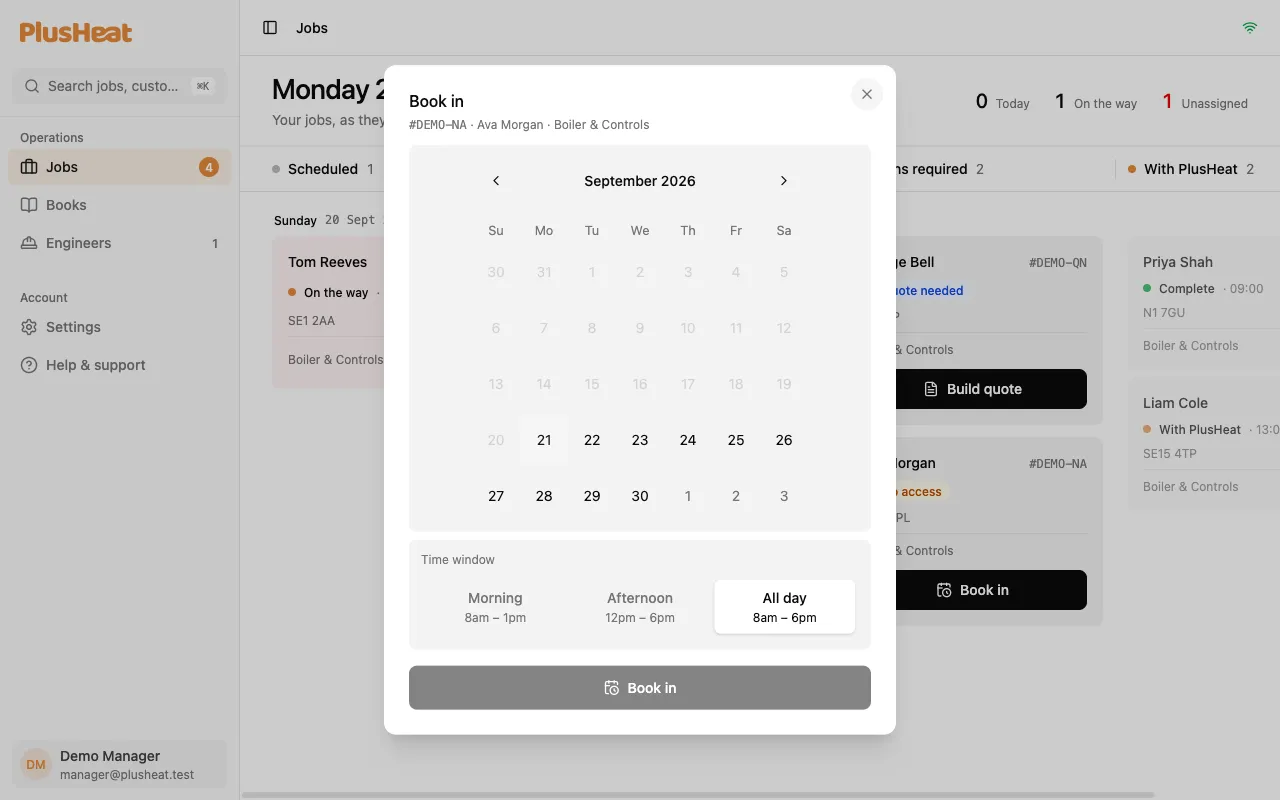
Press Book in on the card (or on the job page).
-
Pick a day on the calendar. Past days are greyed out.
-
Pick a window: Morning, Afternoon or All day.
-
Book in.
The job moves to Scheduled. If it had an engineer, they keep it and their app updates; if not, it goes to Unassigned for you to assign.
What the customer gets
Section titled “What the customer gets”A confirmation with the day and the window, by the same channel they’ve used before (email or SMS). They don’t get an exact time — the window is the promise.
Changing a date
Section titled “Changing a date”Open any scheduled job → Book in again → pick the new day. The customer is told about the change. There’s no limit, but every change is a message to the customer, so get it right the first time where you can.