Your jobs
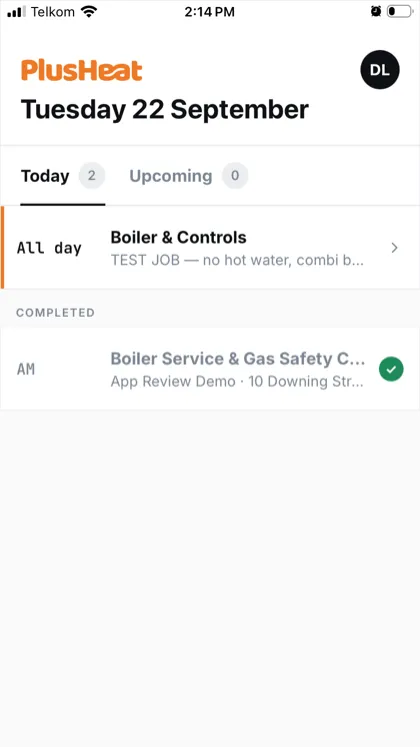
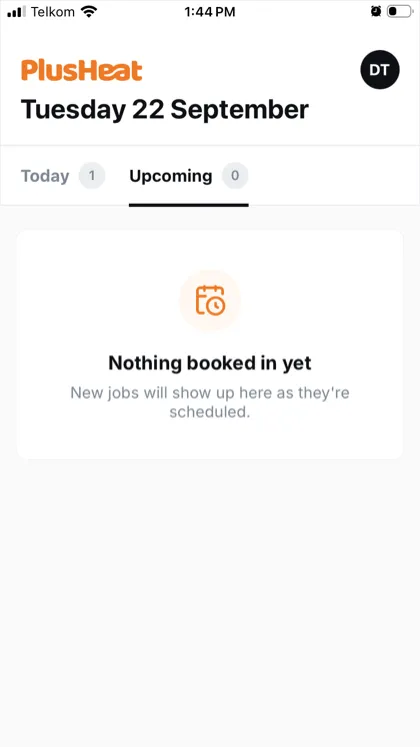
The first screen is your jobs, under today’s date. Two tabs: Today and Upcoming, each with a count.
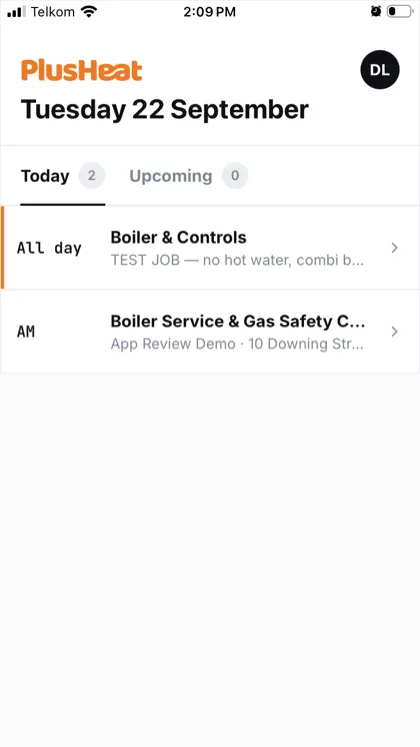
Each row is one visit. On the left is the time window you were given — AM, PM or All day. On the right, the category and the customer, and under it the address.
Tap your initials, top right, for your profile and sign-out.
Opening a job
Section titled “Opening a job”Tap the row.
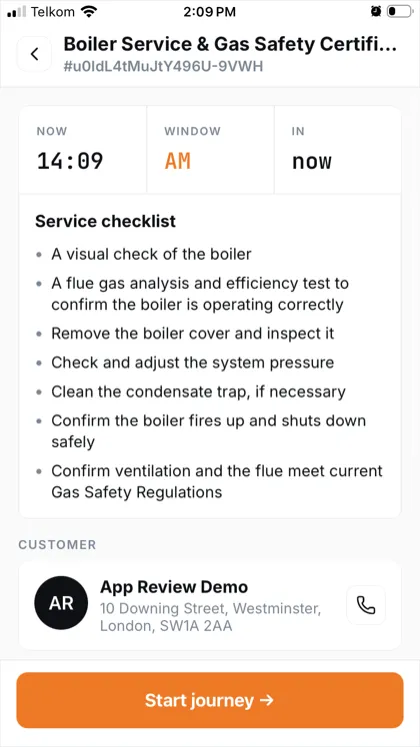
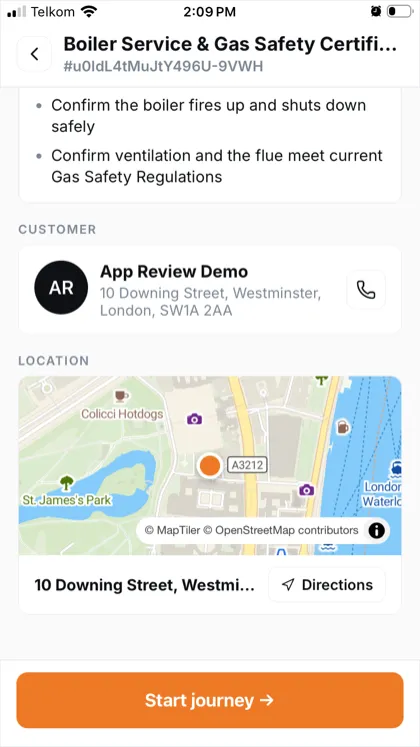
Top of the screen is the job number — #u0IdL4tMuJtY496U-9VWH in the picture. Quote it if you ever ring PlusHeat about this visit.
Under it, three boxes: Now (the time), Window (AM, PM or all day) and In (how long until the slot starts, or now).
Then, depending on the job:
- Service checklist — on a service or gas safety job, what the visit has to cover. Read it before you go in; it’s the list the certificate asks about afterwards.
- The customer — name, address, and a phone icon. Tap it to call.
- Location — the property on a map, with Directions to hand it to your maps app.
Before you set off
Section titled “Before you set off”Read the checklist and the fault. If it names a part or a model, have it with you — a second visit costs the customer a day and you a trip.
The three buttons
Section titled “The three buttons”Every job runs the same way, and the app only ever shows the button that’s next:
| Button | When | What it does |
|---|---|---|
| Start journey | You leave for the job | The customer gets a link and watches you on a map |
| I’m here | At the door | Tracking stops, your time on site starts |
| Finish job | Work done | You pick the outcome, then fill in the report |
The next two pages walk through each: On the way and arrived, then The report.
If nobody’s home, there’s a separate path: No access.
Finished jobs
Section titled “Finished jobs”A job you’ve wrapped up drops into Completed at the bottom of today’s list with a green tick. Tap it to look back at the address or the job number.