Assigning an engineer
An accepted job needs a person. Assigning tells the engineer’s app about the job and tells the customer who’s coming.
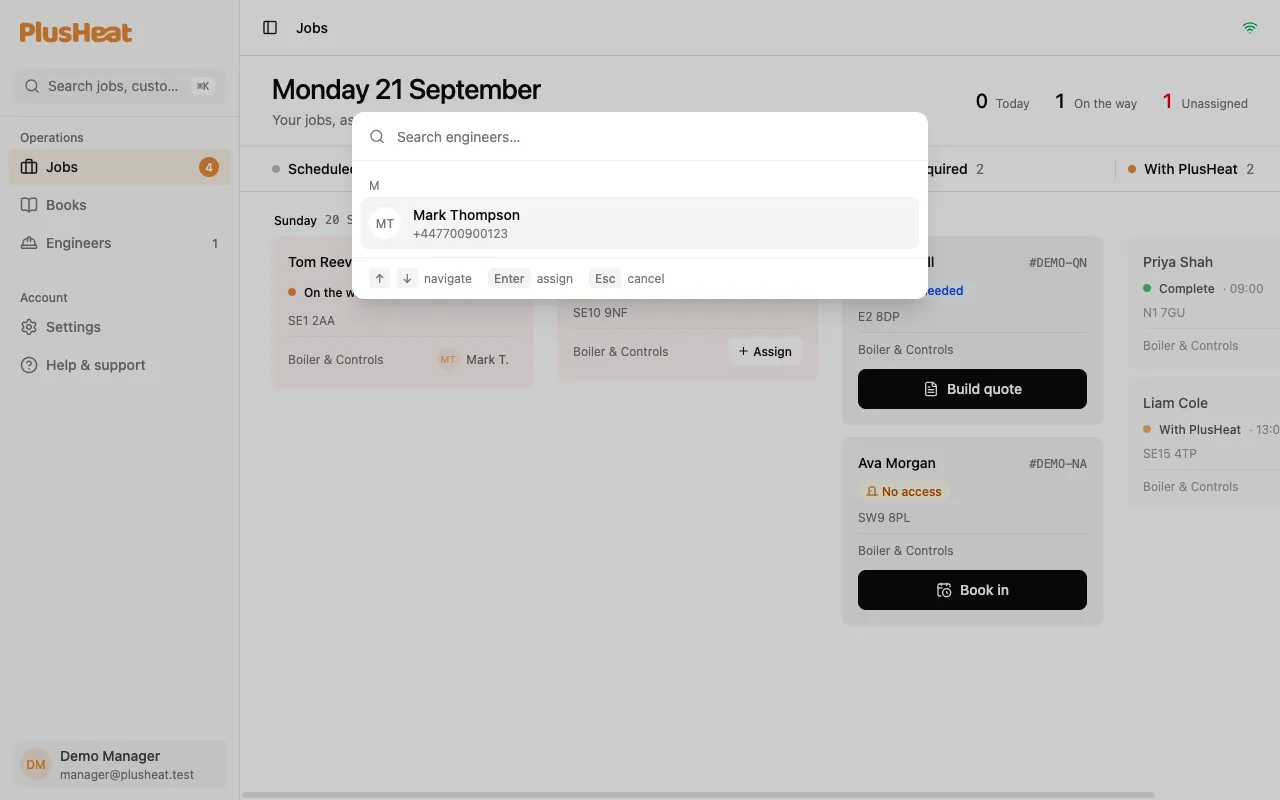
Assign from the board
Section titled “Assign from the board”-
On the Unassigned column, press Assign on the card.
-
Type a name, or pick from the list.
-
Press Enter or tap the name.
The card moves to Scheduled under its day, with the engineer’s initials on it. In their app, the job appears under that day.
Assign from the job page
Section titled “Assign from the job page”Open the job → the Engineer card on the right → Assign. Same list, same result. Use this when you’re already looking at the job.
Who’s in the list
Section titled “Who’s in the list”Everyone under Engineers in the sidebar. An engineer must be on your list before they can be assigned — add them there first with their name and mobile number.
Reassigning
Section titled “Reassigning”Open the job → Engineer card → Change. The previous engineer loses the job from their app; the new one gains it. The customer is not re-notified unless the date changes too.
Removing an engineer from your list
Section titled “Removing an engineer from your list”Engineers → the engineer → Remove. Any jobs assigned to them go back to Unassigned so you can put someone else on. Their app account is not deleted — they can still be added by another company.